


A paint by numbers generator takes a photograph and turns it into a numbered outline. That part works, and it works better than most people expect. What is less well explained is what the generator does not give you, which is most of what you need to end up with something on a wall.
This page covers both: how the conversion actually works, how to choose a photo that survives it, and where the free route stops.
What happens to your photo
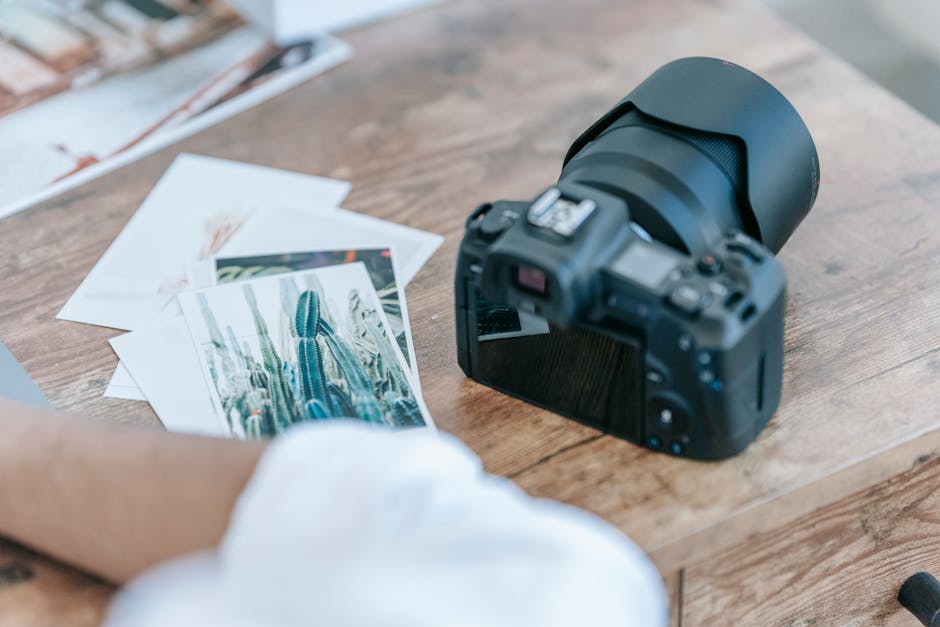
Every generator does the same three things, in the same order.
It reduces the number of colors. A photograph contains millions of distinct color values. The generator picks a small set, usually somewhere between twelve and thirty, and reassigns every pixel to the nearest one. This step is called quantization and it is where most of the character of the result is decided. Fewer colors means bolder, flatter, more graphic. More colors means subtler, and far more small fiddly regions.
It turns pixel clusters into shapes. Adjacent pixels sharing a color are grouped into a region with an outline drawn around it. Tiny clusters get absorbed into their neighbors, which is why fine detail such as individual hairs, distant leaves and small lettering usually disappears at this stage rather than becoming paintable.
It numbers the regions and lists the colors. The output is an outline drawing plus a legend of numbered color swatches, generally given as hex or RGB values.
How to pick a photo that converts well
The conversion is only as good as what you feed it, and the qualities that make a good photograph are not quite the qualities that make a good conversion.
- Strong, simple light. Clear separation between lit and shadowed areas gives the quantizer something to build distinct regions from. Flat, evenly lit photos come out mushy.
- An uncluttered background. Busy backgrounds turn into confetti, hundreds of tiny regions that are miserable to paint and add nothing.
- The subject filling the frame. Anything small in the picture will be small in the conversion, and small usually means absorbed.
- Contrast between subject and background. A black dog on a dark sofa has no edge for the software to find, so it will not draw one.
- Few faces rather than many. Faces need many regions to read correctly. A group photo divides the same detail budget among all of them and nobody comes out looking like themselves.
- High resolution. You cannot recover detail that is not in the file.
If you have two candidate photographs, choose the one with clearer contrast rather than the one with more detail. Detail is what gets thrown away.
Where the free route stops
This is the part that is usually left out, and it is worth knowing before you spend an evening on it.
What you have at the end of a generator is an image file. To paint it you still need to:
- Get it onto a paintable surface. A home printer prints on paper. Paper buckles as soon as it is wet, so painting on it means accepting a rippled result, and transferring the outline to canvas by hand is slow, imprecise work.
- Prime the surface. Acrylic on unprimed cotton soaks in and goes dull and blotchy.
- Match the colors. This is the real wall. The legend gives you hex values, and mixing acrylic to a specific hex by eye is genuinely difficult even for experienced painters. Twenty of them, consistently, with enough of each to last the whole canvas, is a serious undertaking, and running short of one halfway through means trying to mix the same shade twice.
None of this makes the free tools useless. They are excellent for seeing how a picture will look converted, for deciding between two photographs, and for anyone who already has a stocked paint box and enjoys the mixing. They are just not a shortcut to a finished canvas, and the pages that present them as one are skipping the hardest three steps.
We have looked at the individual tools in more detail elsewhere: how PBNify works and the software options both go further, and the free routes compares them.
A note on covering the numbers
One piece of advice that circulates widely is to scribble over dark printed numbers with a white colored pencil before painting a pale color on top. It is worth being careful with this. Colored pencils are wax-based, and wax repels water-based paint, so the acrylic can bead or lift over the treated patch.
Two thin coats of the correct color is the reliable answer, and it is what the pale colors were going to need anyway.
Choosing the color scheme deliberately
Once you are choosing your own picture rather than being handed one, a little color theory pays off immediately. A photograph with a warm subject against a cool background, or a single strong accent in an otherwise quiet frame, converts into something with structure. A photograph where everything sits at the same temperature and the same brightness converts into a puzzle. The color wheel covers why in a few minutes.
The version that skips the hard part
Custom Paint by Numbers does the same conversion, and then does the three steps a generator leaves you with. The outline is printed on pre-primed cotton canvas, the paints are mixed to the design and vacuum-sealed in numbered pots, and it arrives with brushes in a range of sizes and an 11x17 reference print of the finished image. It ships rolled in a tube rather than folded, so there is no crease through the middle.
Sizes are 12x16, 16x20 and 18x24, framed or unframed, and you can add extra paint sets at checkout if you would rather not run short. If you enjoy the mixing, use a generator. If what you want is your own photograph on a wall, this is the shorter road.


